
START HERE / GOLD & BITCOIN
Learn the tools.
Build your process.
Your DuoCharts beginner guide: from reading a chart to setting alerts and practicing your first demo order.
Start learning ↓ Download the guide (PDF) ↗Tap a topic to open its guide. Tap again to close it.
01 / START HEREYour tools
DuoCharts is a trading-analysis tool for Gold and Bitcoin on the 4-hour chart. It organizes signals, projected entry, stop-loss and target levels. Education and a repeatable practice routine help you understand what those outputs mean.
| Tool | Its job |
|---|---|
| TradingView | Read charts, run the DuoCharts indicator and receive its alerts. |
| DuoCharts | Provide a rules-based analysis framework; it does not guarantee a result. |
| Broker | Provide your trading account, prices, contract terms and order execution. |
| TradeLocker / MT5 | Place and manage orders through a supported broker account. |
| Journal | Record the setup, your decisions, actual fills and outcome. |
Your first session
Create a TradingView login and a demo trading account. Keep the demo balance realistic for your learning exercise. Learn one execution platform first; you do not need both TradeLocker and MT5 to start.
DuoCharts access, a TradingView subscription, market-data fees and broker trading costs are separate items. Check current TradingView indicator and technical-alert limits before choosing a plan. The author's publishing requirements are not the same as a customer's access requirements. [1]
02 / TRADINGVIEW BASICSRead the chart before the signal
Open a chart and check the symbol and data provider at the top. XAUUSD quotes gold in US dollars; BTCUSD quotes Bitcoin in US dollars. Similar symbols can represent different instruments. A broker's gold or Bitcoin CFD is not the same thing as owning physical gold or spot Bitcoin.
Build a simple workspace
1. Search for the instrument and select the feed specified in your DuoCharts setup instructions.
2. Select 4H (four hours), then choose candlesticks. Each bar summarizes one four-hour interval.
3. Add Gold and Bitcoin to a watchlist. Save a clear layout for each.
4. Learn horizontal lines, zoom and the price scale before adding extra tools.
Candle anatomy: the body connects open and close; the wicks mark high and low. A rising candle closes above its open. See the PDF for the labeled illustration.
The candle body connects the open and close. The wicks show the high and low. The newest candle is still changing until its interval ends. DuoCharts may recolor candles for its own state: do not assume a dark candle automatically means its close was below its open.
03 / SIGNALS & LEVELSUnderstand your DuoCharts setup
DuoCharts indicator access and installation instructions are provided to paid members. This free guide explains the terminology and general workflow so you can understand the tools before choosing access.
| On screen / in an alert | What it means |
|---|---|
| Regime | The model's directional state; it is not a certainty about the next move. |
| FORMING | An early, unconfirmed condition. It may change before the candle closes. |
| CONFIRMED | The relevant signal passed its confirmation rules. This is not a guaranteed win. |
| Entry | A reference price for the setup, not a guaranteed broker fill. |
| SL | The setup's stop reference. Your broker stop must be placed separately. |
| TP1 / TP2 / TP3 | Projected target levels. A touch alert is not proof of realized profit. |
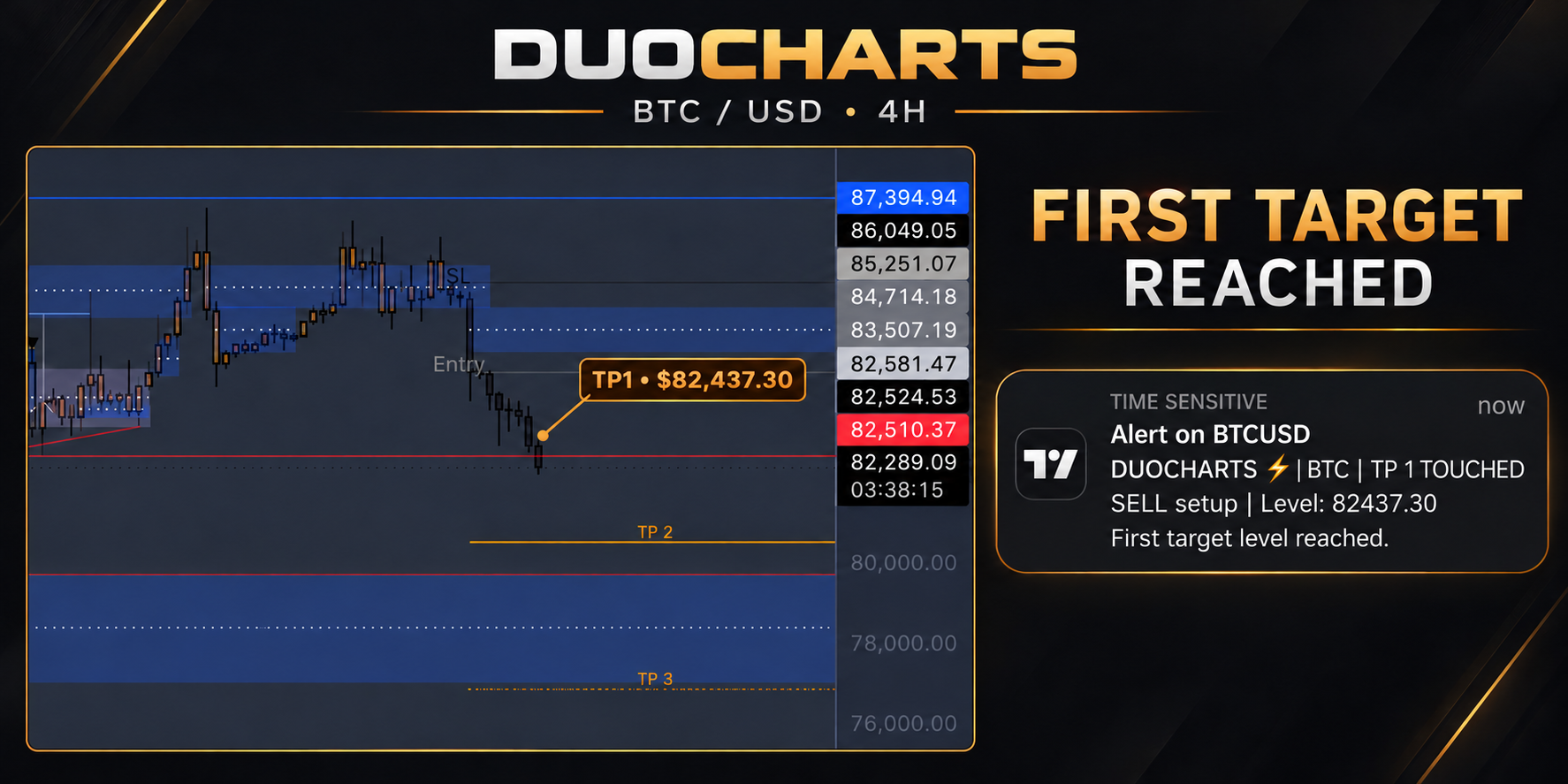
Read the complete message
Check the asset, side, timestamp and whether it says forming or confirmed. In the reviewed build, confirmed entry messages reference the 4H close. Never use an old screenshot as a current entry instruction.
Hit levels may disappear as the script updates its tracking. Save the original alert and chart. A missing line alone does not tell you whether your broker closed a position.
04 / CONNECT THE WORKFLOWSet up phone alerts
First confirm that DuoCharts is on the correct symbol and 4H chart. Check that the desired entry, target and early-alert options are enabled in the indicator. Menu wording can vary by device. [3, 4]
Create an alert for each instrument
1. Open Create alert in TradingView.
2. Under Condition, choose DuoCharts Gold & BTC 4H.
3. For the script-driven messages, choose “Any alert() function call.”
4. Enable “Notify in App,” review expiration and name the alert clearly, such as “DuoCharts Gold 4H.”
5. Sign into the same TradingView account on your phone and allow notifications in phone settings.
6. Repeat for Bitcoin on its own chart. Confirm both alerts are active. [3, 4]
If a notification does not arrive
Check the TradingView alert log first. If the event is logged, inspect phone permissions, Focus / Do Not Disturb and the signed-in account. If it is not logged, check the active alert, condition, symbol, timeframe and enabled script options. Save the time and screenshot for support; do not assume the phone is the cause.
A separate test price alert can help check phone delivery, but it does not prove the DuoCharts signal logic fired. Old chart events are not retroactive phone alerts.
05 / POSITION SIZE & ORDERSKnow the risk before the click
Start with the loss amount, not the lot size
Position size determines how much a price move changes your account. Leverage reduces the margin needed to hold exposure; it does not make the price risk smaller. For practice, choose a fixed hypothetical loss budget and learn to calculate the size that fits it.
For a broker instrument: lots = cash risk budget / (stop distance in ticks x tick value per lot). Check contract size, tick size, tick value, account-currency conversion and minimum volume. Allow for costs and round down to the permitted increment. If the smallest size exceeds the budget, skip the order.
| Term | Beginner meaning |
|---|---|
| Market order | Requests execution at available prices; the fill can differ from the quote. |
| Limit order | Sets a price or better, but may remain unfilled. |
| Stop-loss | An exit trigger; the execution price is not guaranteed. |
| Spread / fees | The bid-ask gap, commission and possible overnight financing affect results. |
In a basic buy setup, the initial stop is below entry and targets are above it; a sell reverses that arrangement. Fast markets and gaps can produce slippage, so actual loss may exceed the planned amount. Check the broker's trigger and execution rules. [8, 9]
06 / PLATFORM WALKTHROUGH ATradeLocker: your first demo order
Use TradeLocker only with a supported account, or its standalone demo. The broker supplies account details; a TradingView login is not a TradeLocker brokerage login. Confirm that you are in DEMO before proceeding. [5, 6]
Practice the complete order cycle
1. Sign into the demo environment using the correct account and server details.
2. Search the broker's instrument. Check its contract specifications and current spread.
3. Open the order panel; choose direction, order type and size.
4. Expand the SL/TP controls. Enter the planned prices and review the estimated risk.
5. Double-check the order, then submit it on demo.
6. Find the resulting position or pending order. Verify the size and accepted SL/TP.
7. Practice modifying an exit, closing a position and canceling a pending order. Confirm each result in the account history. [5, 6]
Keep analysis and execution connected
Read DuoCharts on TradingView, then independently review the broker order ticket. This guide does not install DuoCharts inside TradeLocker or connect automatic execution. Do not assume that embedded TradingView-style charts include your invite-only script.
Before submitting, ask: correct account, correct symbol, correct direction, correct size, correct stop? A successful click is not enough; confirm the accepted order details.
07 / PLATFORM WALKTHROUGH BMT5 and choosing an account
MetaTrader 5 is an alternative execution platform. Use it if your chosen broker and account support it. Broker login credentials and the correct server are required; installing MT5 alone does not create a funded trading account. [7, 8]
Practice on a supported MT5 demo
1. Add the demo account and select the exact broker server.
2. In Quotes, select the instrument and open its order ticket.
3. Review order type, volume, stop-loss and take-profit prices.
4. Submit the demo order, then inspect it in Trade.
5. Practice modifying SL/TP and closing the position. Use History to check the result.
6. Learn how a pending order differs from an open position before trying faster execution options. [7, 8]
About HeroFX
HeroFX is a broker Masz has mentioned, not a requirement for DuoCharts. Its own platform comparison currently says MT5 is unavailable to US traders on HeroFX. Treat that as a provider statement, not independent confirmation of eligibility or regulatory status. [9]
Before selecting any broker, verify your country eligibility, legal entity and registration with your local regulator. Read deposit, withdrawal, spread, commission, overnight-fee and leverage terms. Use official download links and begin with demo access. Availability can change; confirm directly before funding.
BROKER BASICS / MASZLeverage: 1:200 vs 1:500
Masz uses a 1:200 account setting on HeroFX. That is a personal setup, not a requirement for DuoCharts or a recommendation that beginners use that much exposure. Account leverage and the margin rules for a specific symbol can differ.
| Setting | For the same hypothetical $10,000 position |
|---|---|
| 1:200 | $50 initial margin (0.5% of exposure). |
| 1:500 | $20 initial margin (0.2% of exposure). |
| Same price move | A 1% adverse move loses $100 in either case, before costs. |
These are simplified examples, not Gold or Bitcoin contract quotes. Higher available leverage lowers initial margin; it does not reduce loss per price move at the same position size. Using the extra capacity to increase size increases both potential gains and losses. Margin is collateral, not a maximum-loss amount. [11]
Which setting should a beginner choose?
Begin on demo and choose size from a cash-risk budget and stop distance. If both settings are available, 1:200 provides less borrowing capacity than 1:500, but neither is automatically safe. Do not switch to 1:500 just to fit a larger trade. You can use far less actual leverage than the account maximum.
Masz’s HeroFX referral link
08 / BUILD A REPEATABLE ROUTINEYour first week of practice
| Session | Finish this exercise |
|---|---|
| 1 / Orientation | Name each tool's role. Find Gold and Bitcoin and set the chart to 4H. |
| 2 / Chart reading | Identify open, high, low and close. Find the provider and current candle. |
| 3 / DuoCharts | Add the indicator. Explain forming vs confirmed, entry, SL and targets. |
| 4 / Alerts | Create and inspect alerts. Check the log and phone notification settings. |
| 5 / Execution | Place and close a demo order; modify an exit; cancel a pending order. |
| 6 / Risk | Calculate size from a fixed cash-risk budget. Check contract specifications. |
| 7 / Review | Review the journal. Identify one process error and how to avoid repeating it. |
These are learning sessions, not a seven-day deadline to trade live. If no DuoCharts setup appears, practice order mechanics separately on demo and label that exercise clearly. Do not force a signal to complete the checklist.
Copy this journal record
Date / time / timezone: __________ Signal status / side: __________
Chart provider / broker instrument / demo account: __________
Reference entry / fill / stop / targets / size: __________
Cash risk / fees / outcome: __________ Screenshots: __________
Rule followed or mistake to correct: __________
09 / KEEP THIS PAGE HANDYQuick answers & vocabulary
“It touched TP. Why is my position still open?”
A DuoCharts touch message reports the script's event. Check whether a take-profit order was actually accepted by your broker, whether your position remains open and whether its price feed reached the broker's trigger.
“The stop hit, then price went my way.”
Record the stop-out as it happened. A later move does not restore the closed position. Review the original setup and execution without rewriting the result.
“The regime changed. Is that an automatic reversal?”
No. Read the full alert and distinguish forming from confirmed. A regime is the model's directional state. Check your existing position and written rules; the notification does not place a reversing order.
| Term | Plain-language definition |
|---|---|
| Long / short | A position intended to benefit from a rise / fall in price. |
| Liquidity sweep | Price trades beyond a reference high or low and returns; the pattern can fail. |
| FVG / IFVG | A three-candle price-gap pattern / an FVG interpreted after price breaks through it. |
| Premium / discount | Above / below the midpoint of a selected range; not proof of fair value. |
| OTE | A selected retracement zone used by the model, not a guaranteed turning point. |
| R | One unit of initial planned risk; a $10 gain on $5 initial risk is +2R before costs. |
10 / REFERENCE DESKOfficial references & next steps
- [1] TradingView plans and feature limits
- [2] TradingView: script alerts and saved snapshots
- [3] TradingView: phone notifications
- [4] TradeLocker: demo access
- [5] TradeLocker: setting stop-loss and take-profit
- [6] MT5: demo accounts
- [7] MT5: opening and closing positions on iPhone
- [8] Investor.gov: stop-order execution risks
- [9] HeroFX: platform comparison and US MT5 restriction
- [10] HeroFX: account and instrument leverage FAQ
- [11] CFTC: leverage and margin risks
Educational material, not personalized investment advice or a broker endorsement. Trading can result in loss; leveraged products can amplify losses. Examples are illustrative. Demo performance, historical charts and target-touch alerts do not guarantee live results. DuoCharts does not hold customer trading funds or execute orders through this guide.